logo

Assign tests to referrals.

1

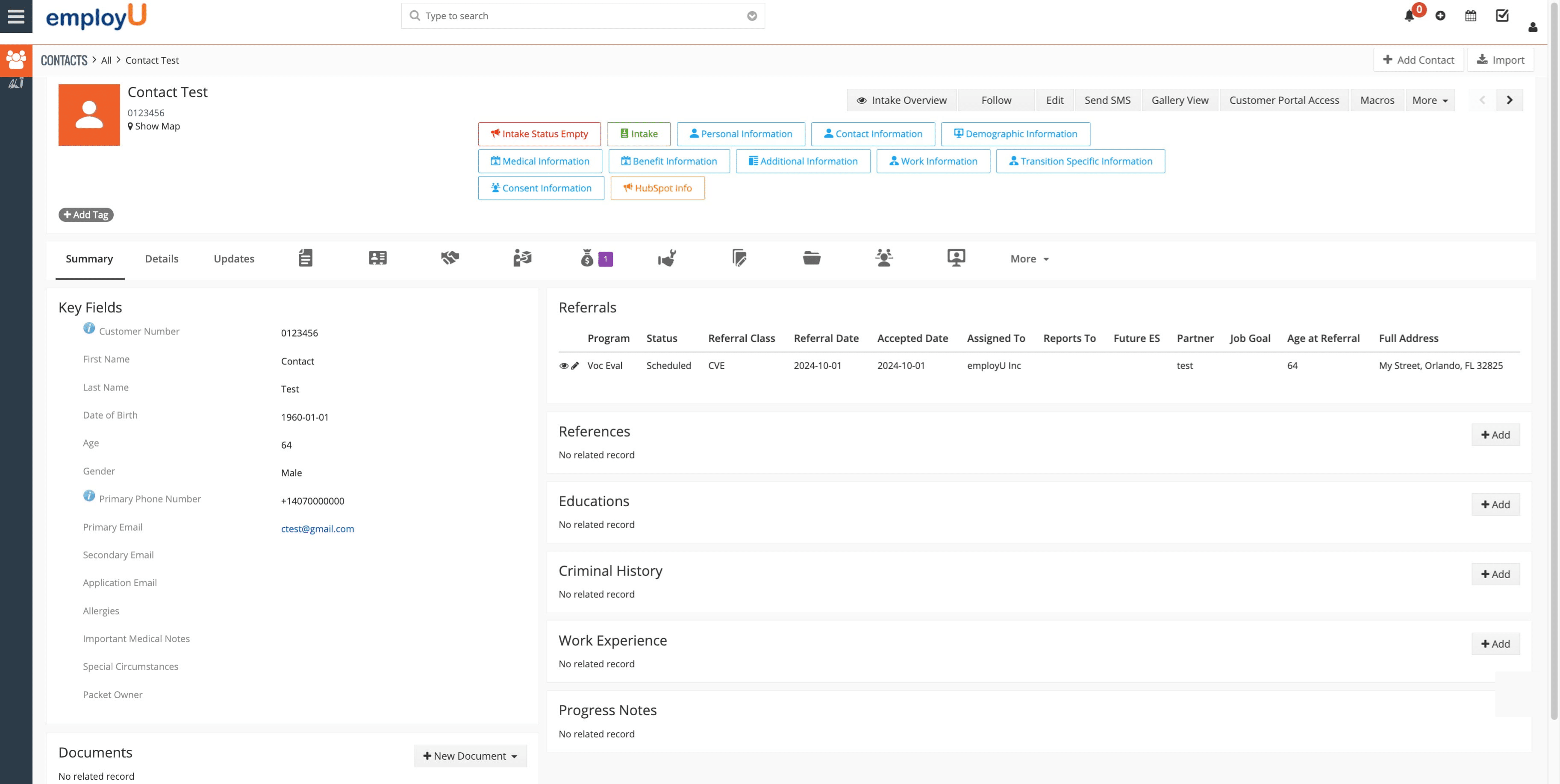
Look for the contact.

Look for the contact.
2

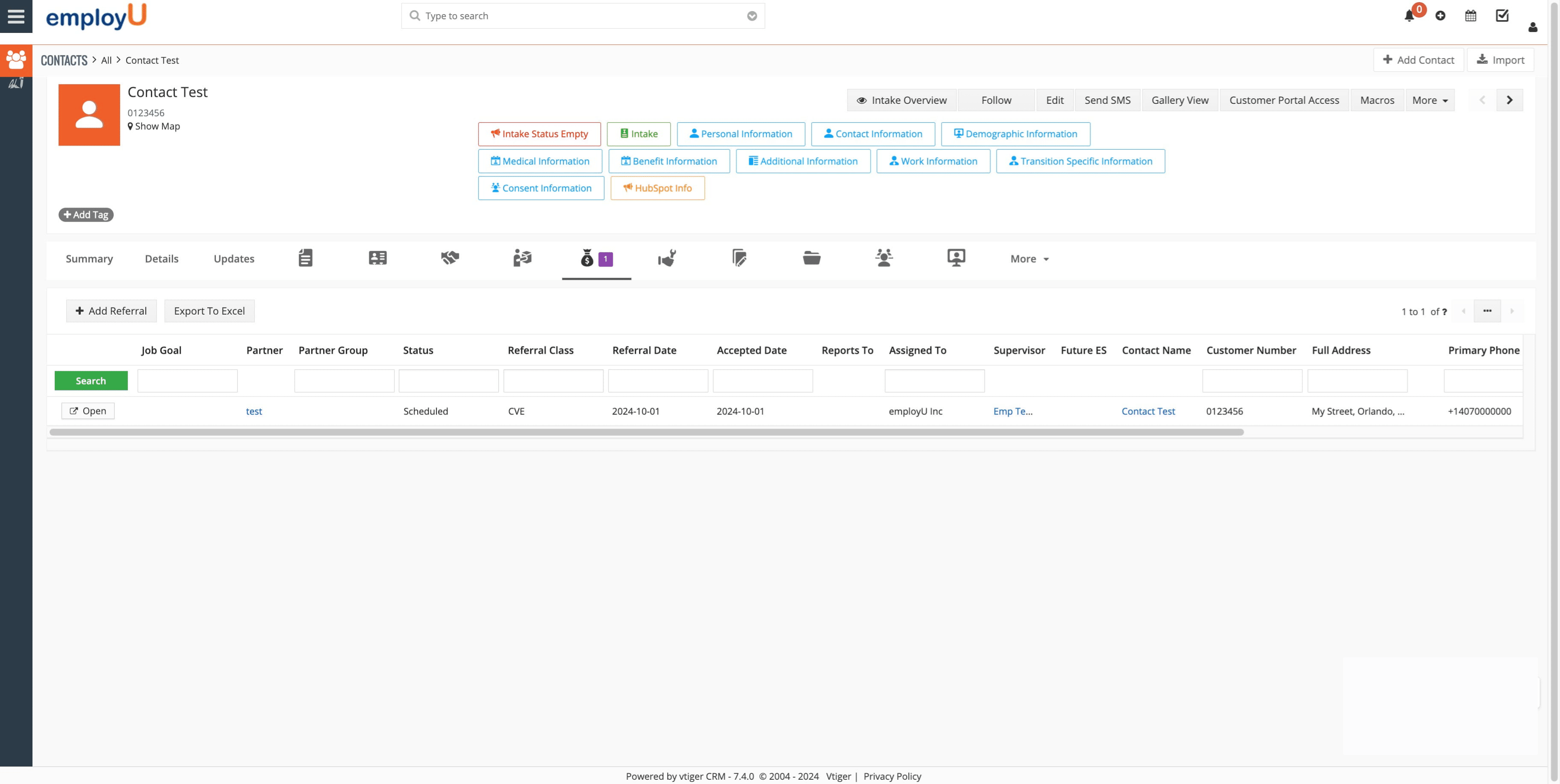
Navigate to the Referrals area.

Navigate to the Referrals area.
3

Open the appropriate referral.

Open the appropriate referral.
4

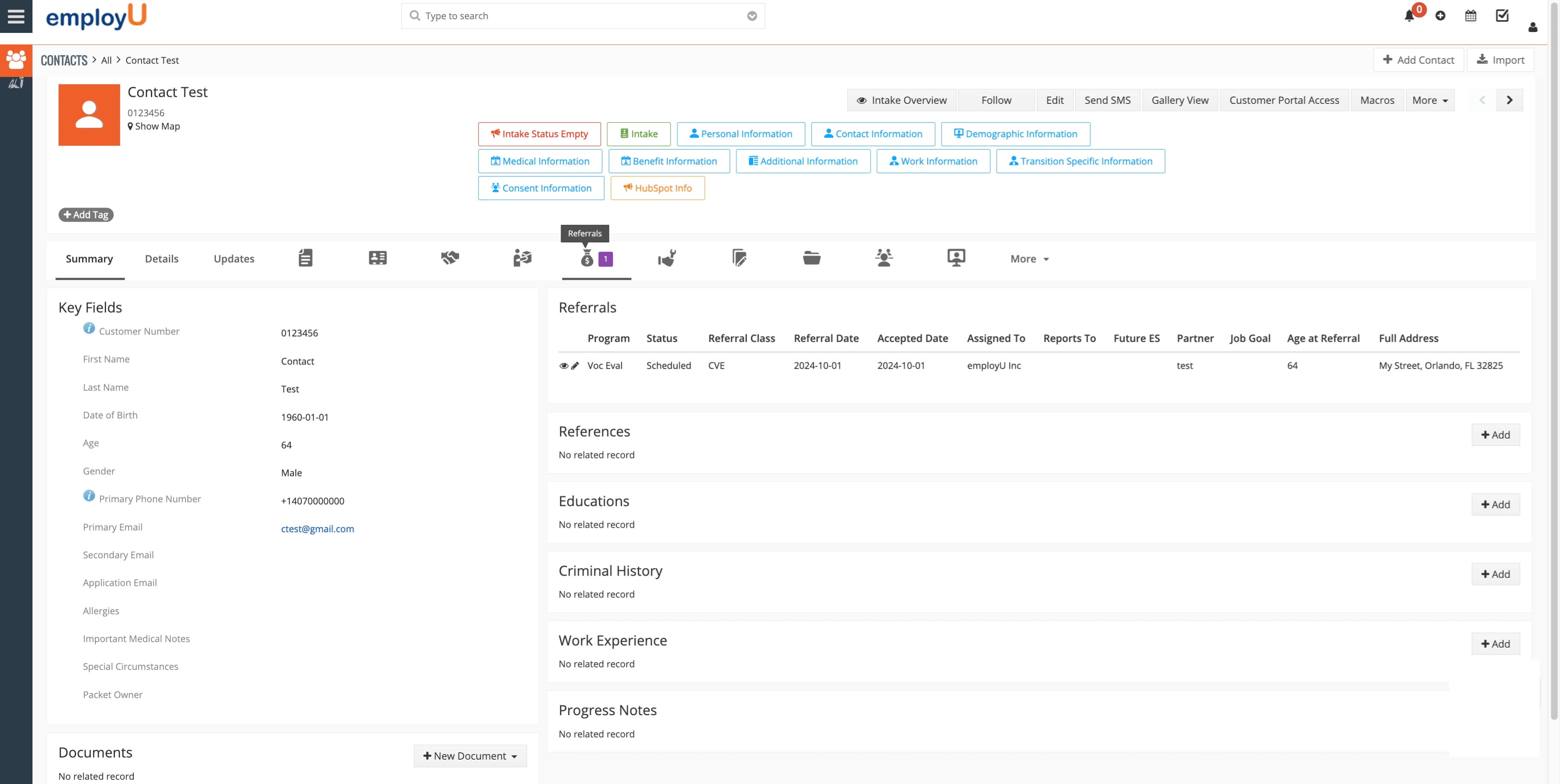
Click the Materials icon to begin linking the tests.
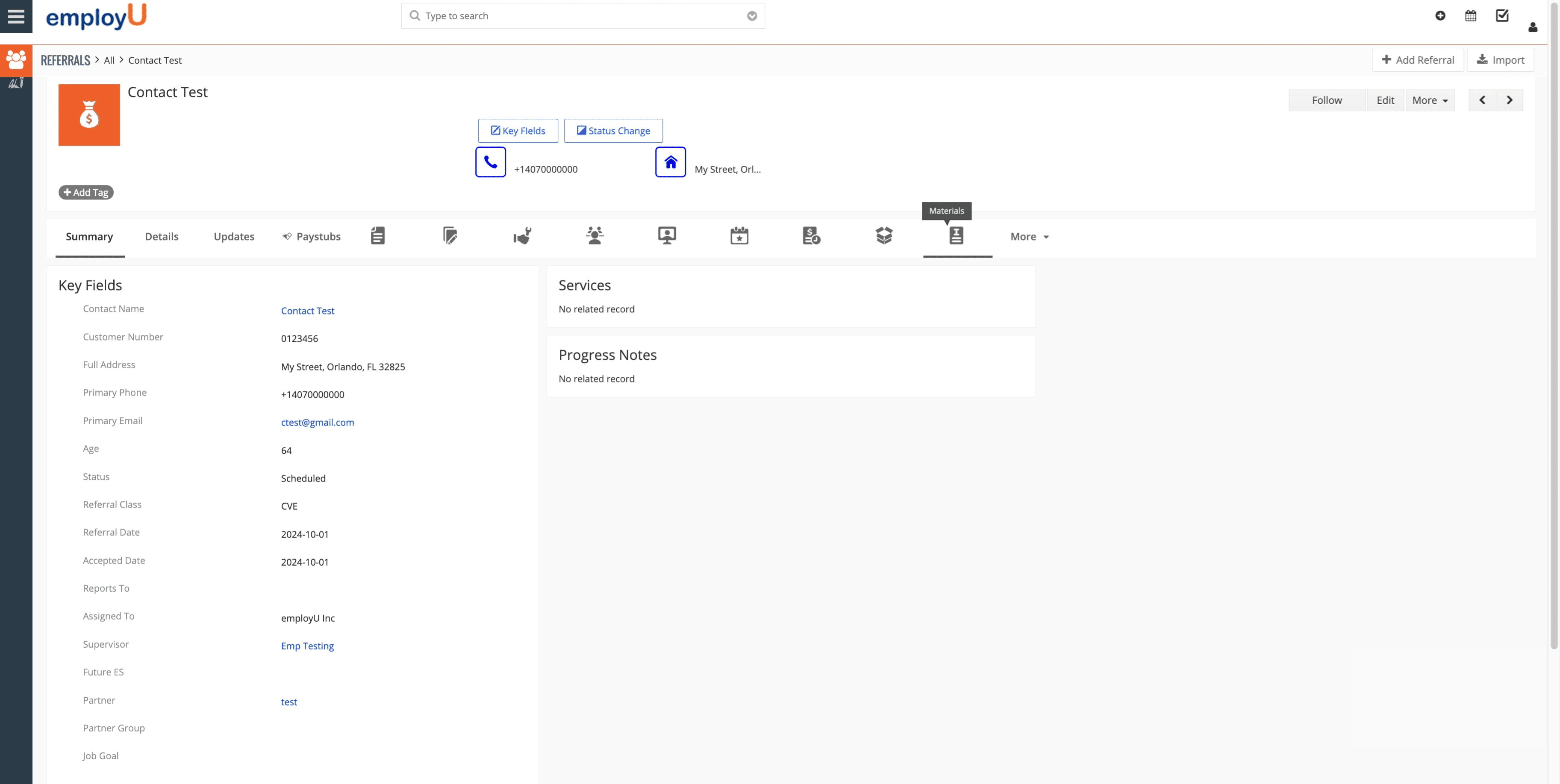
Click the Materials icon to begin linking the tests.
5

Start the process by clicking 'Add Material'.
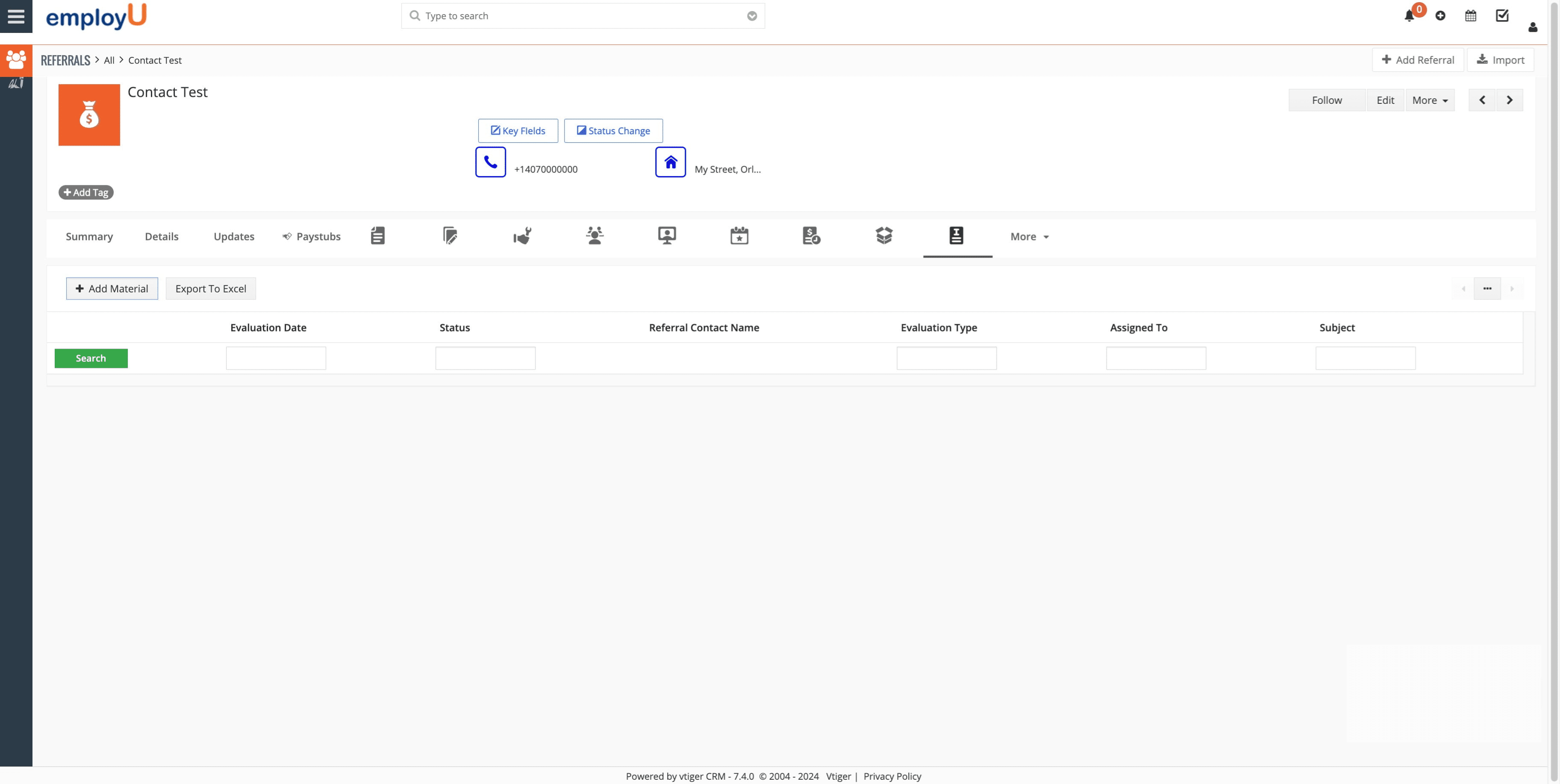
Start the process by clicking 'Add Material'.
6

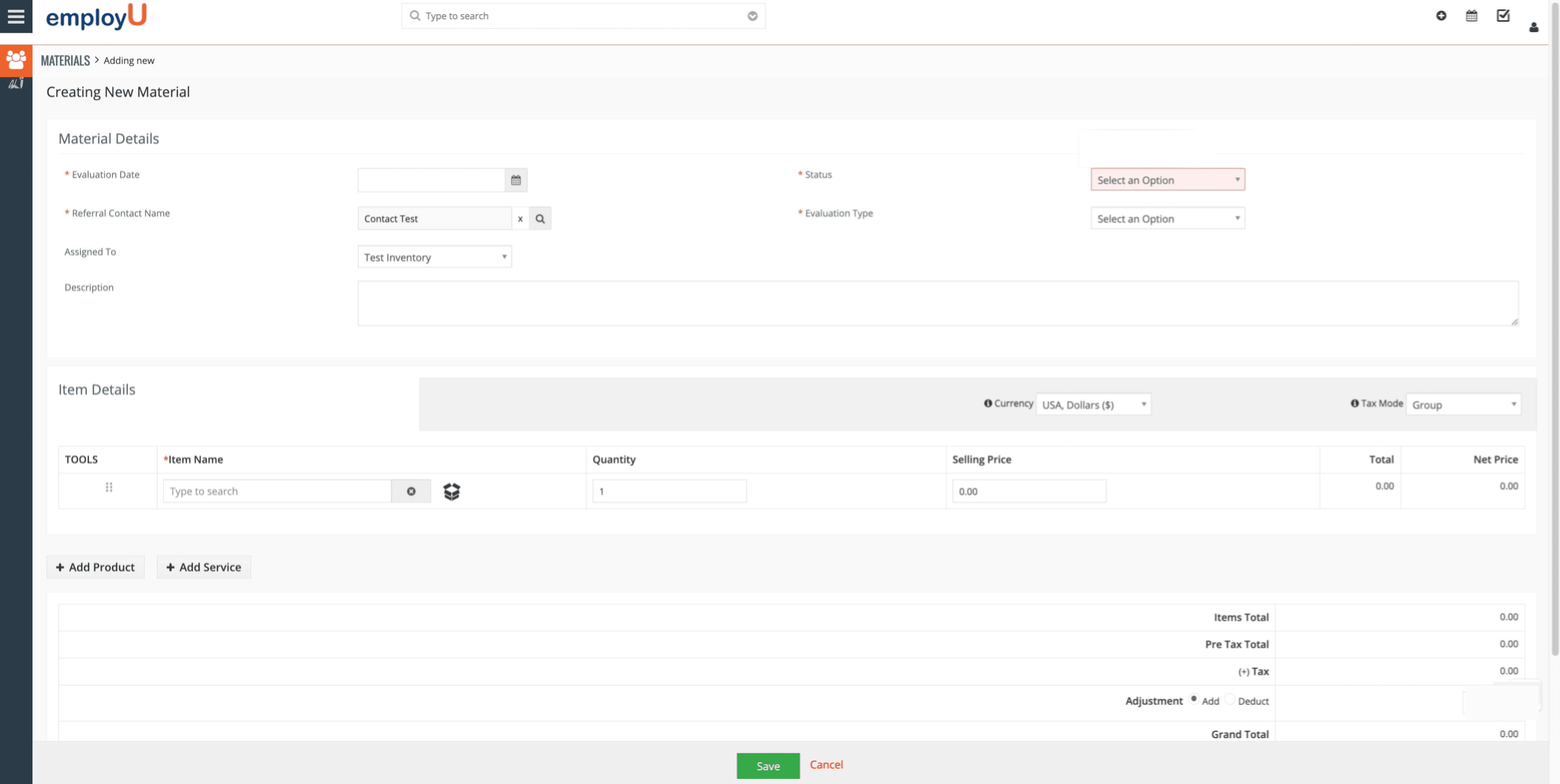
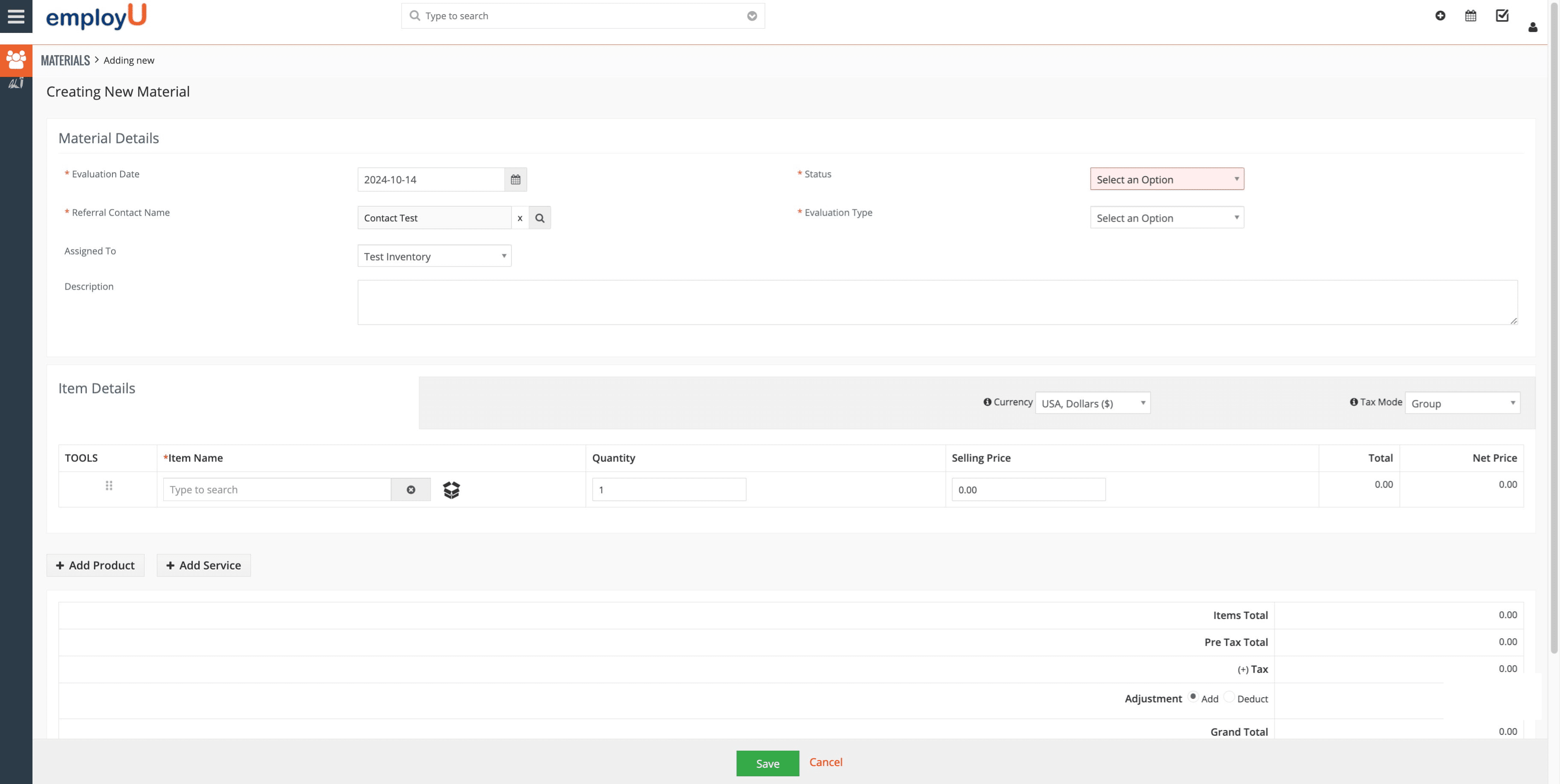
Find the evaluation date.

Find the evaluation date.
7

Select the appropriate evaluation date.
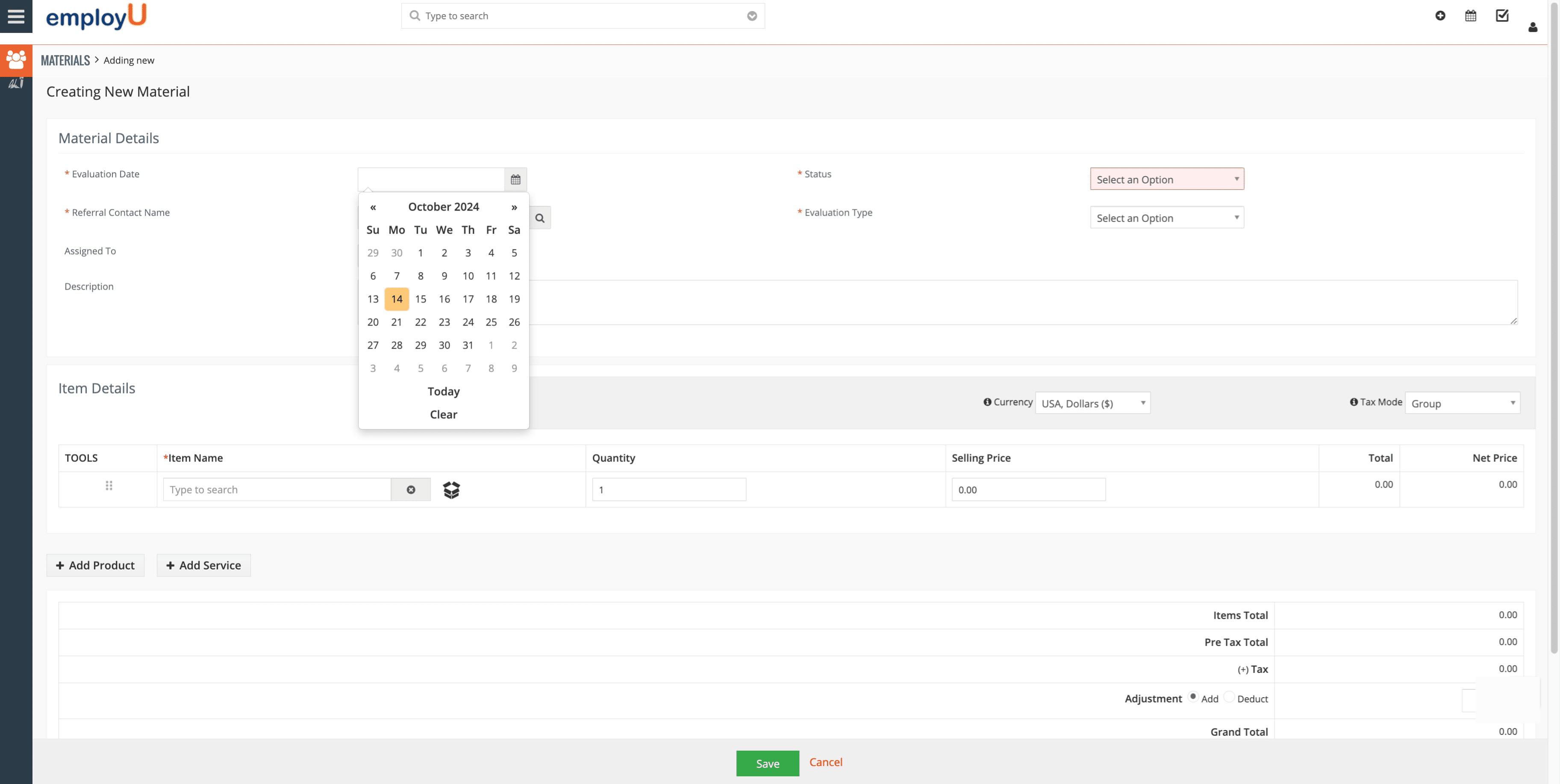
Select the appropriate evaluation date.
8

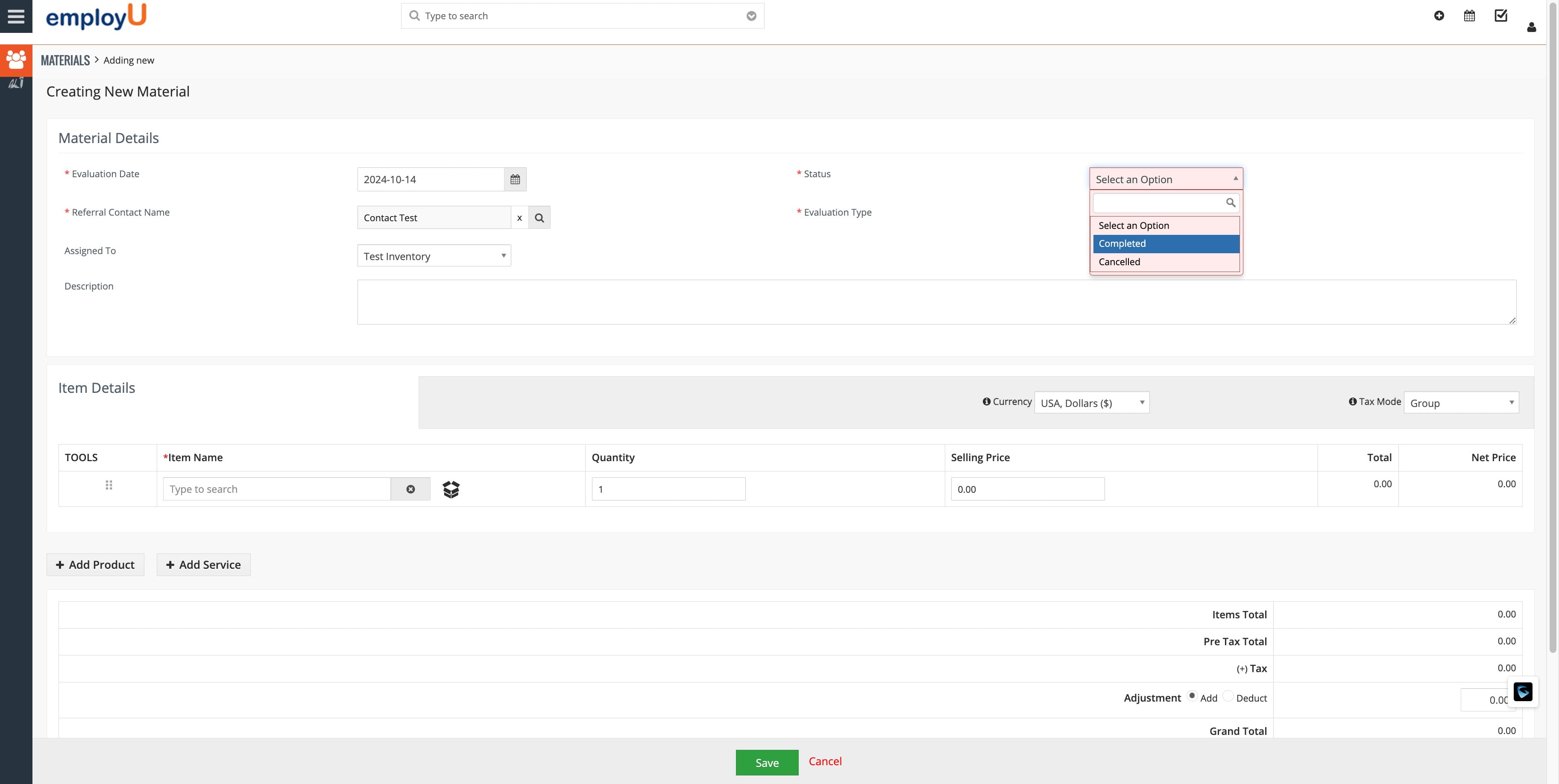
Navigate to the status.

Navigate to the status.
9

Select 'Completed'.

Select 'Completed'.
10

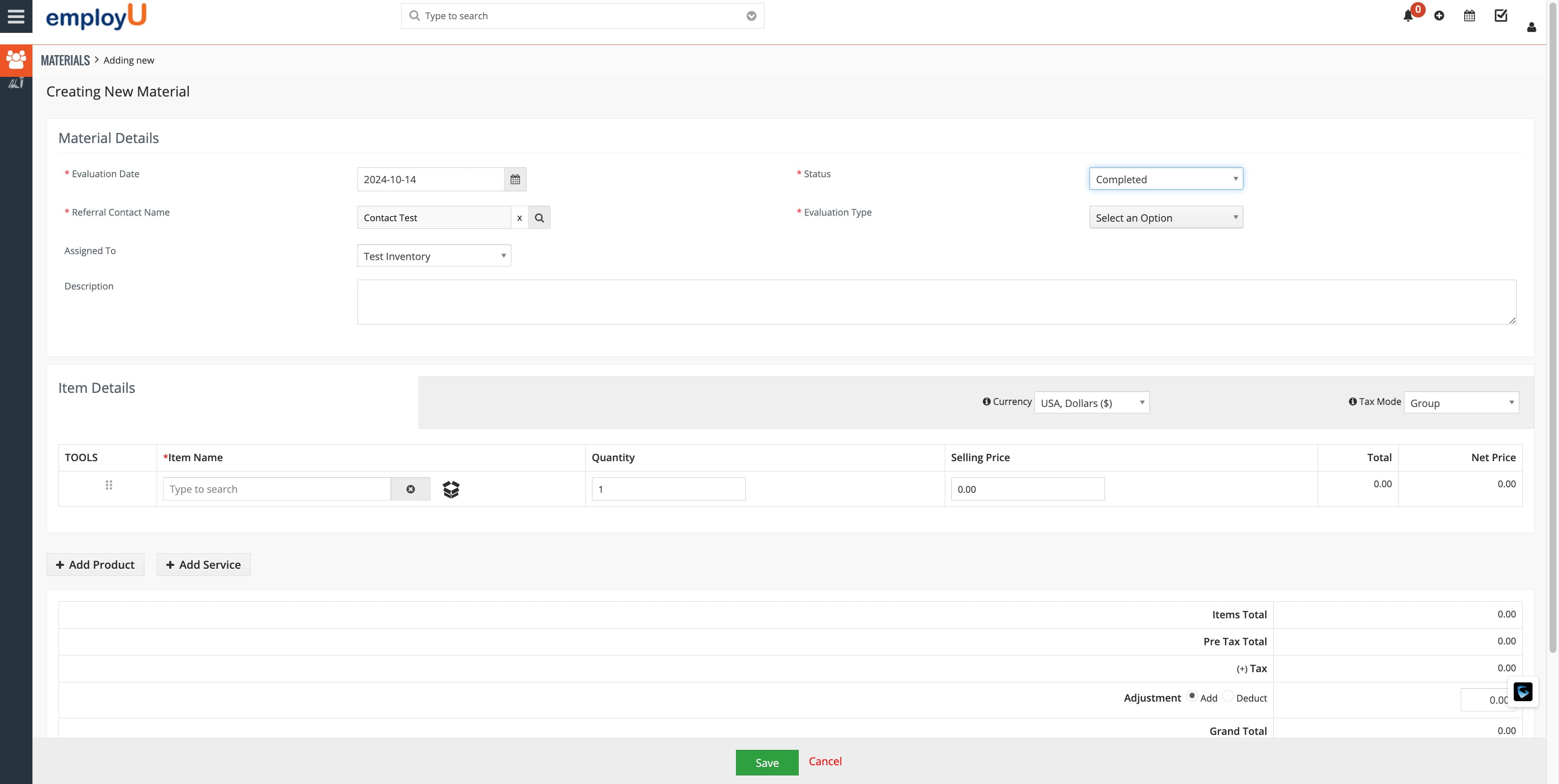
Navigate to the Evaluation Type.

Navigate to the Evaluation Type.
11

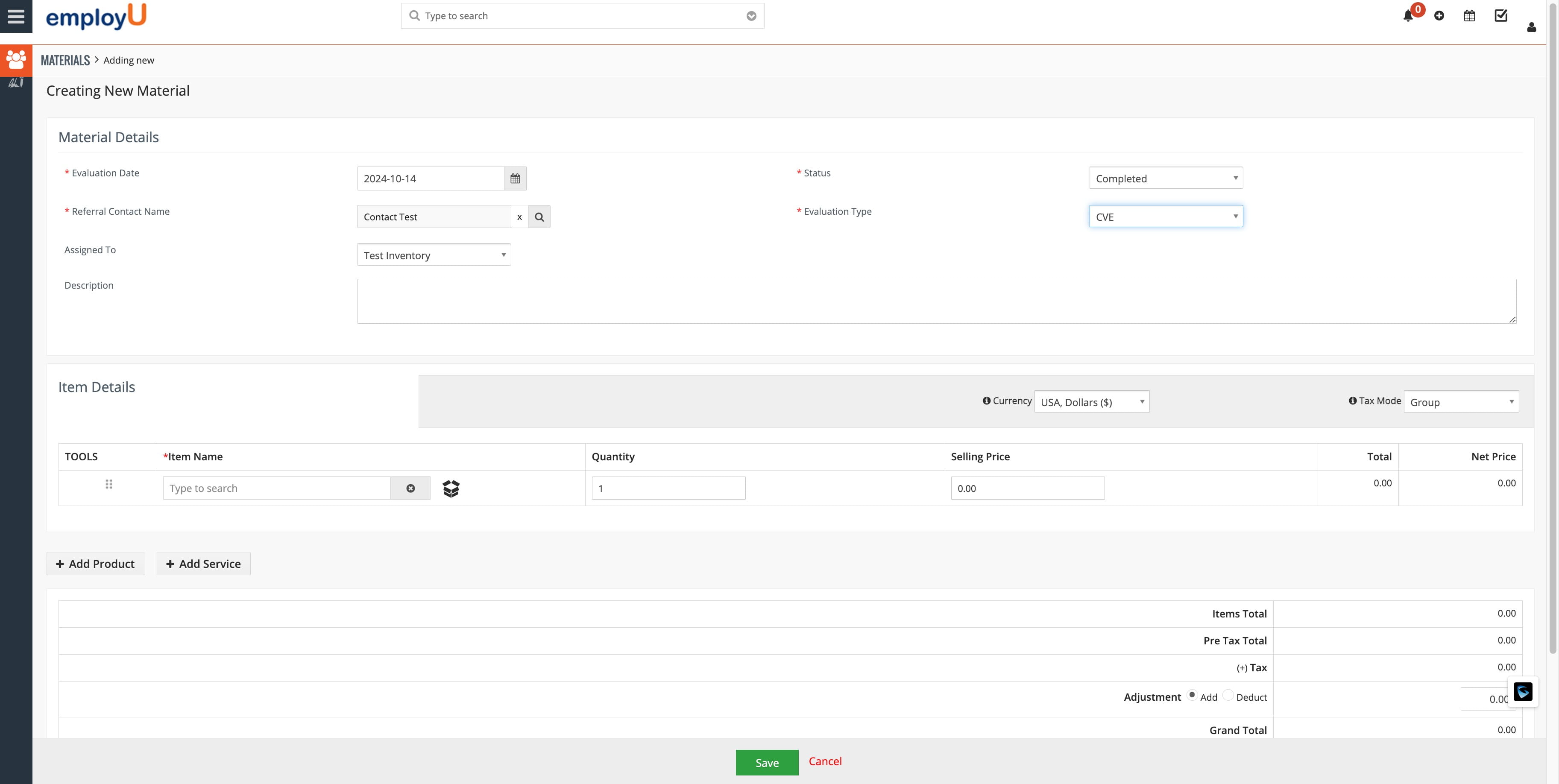
Select the appropriate evaluation type.
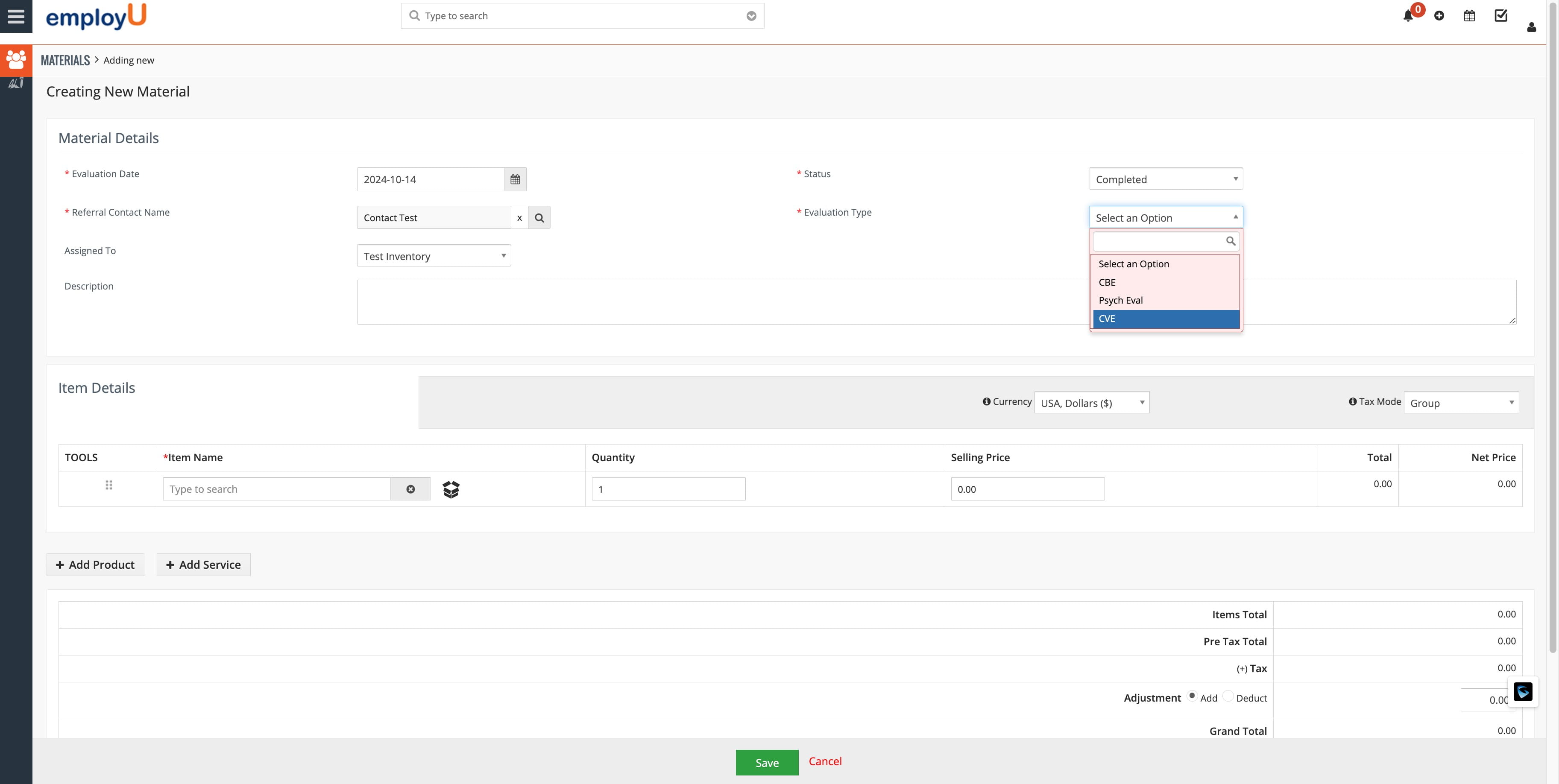
Select the appropriate evaluation type.
12

Let's begin adding some tests.

Let's begin adding some tests.
13

Click on 'Product Name'.

Click on 'Product Name'.
14

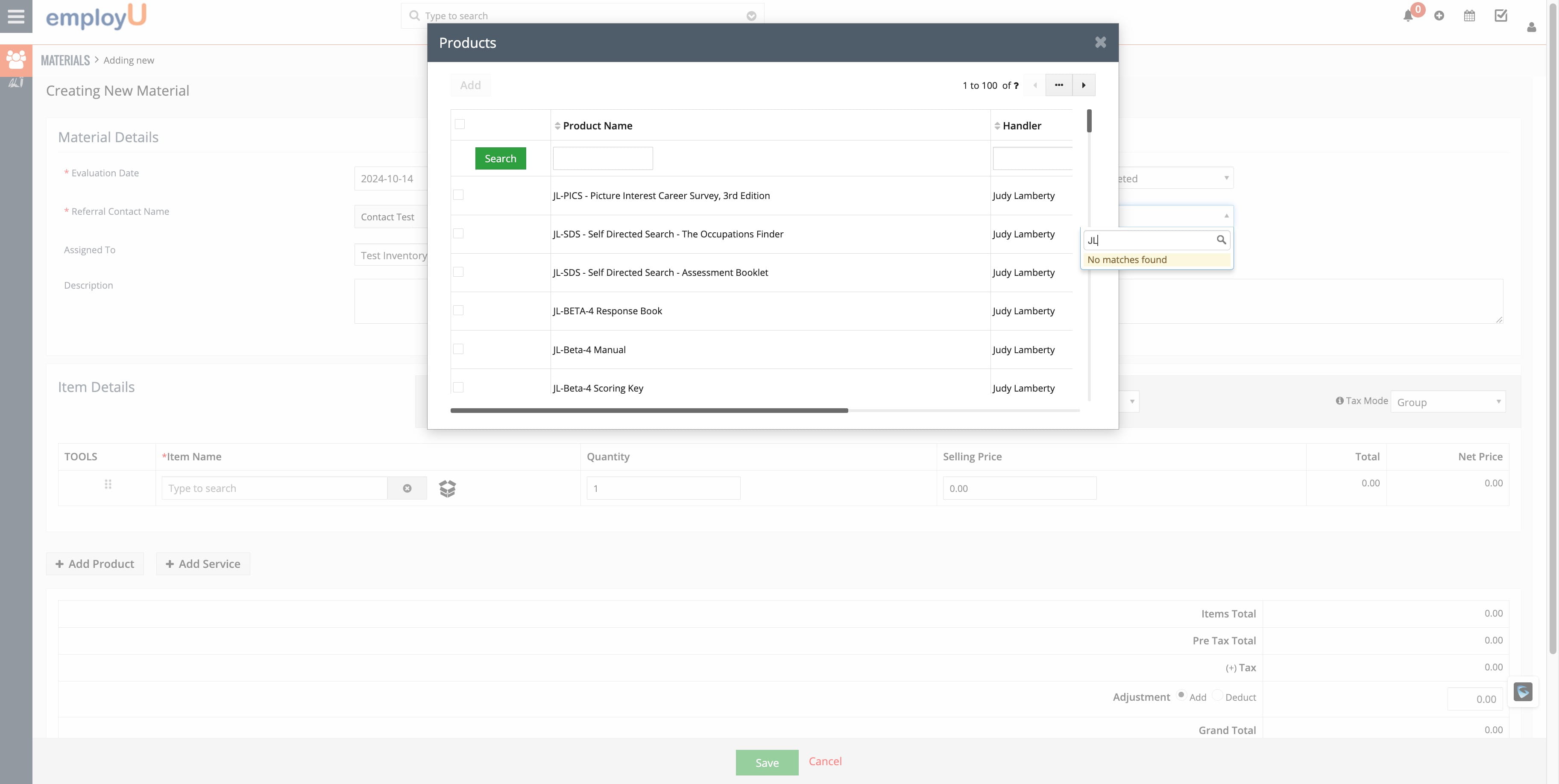
Enter the first letter of your first and last name, then click 'Search' to find your test inventory.
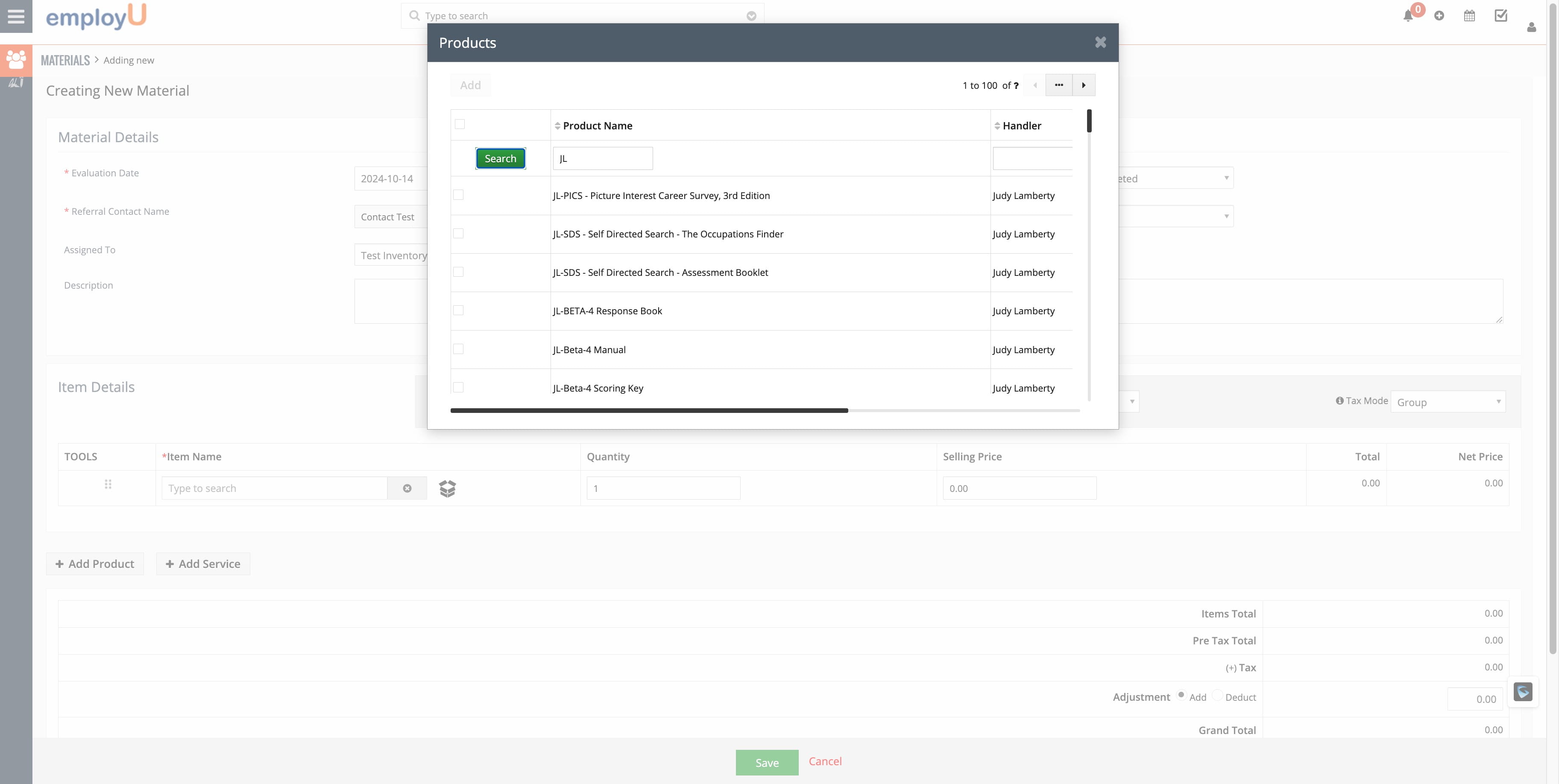
Enter the first letter of your first and last name, then click 'Search' to find your test inventory.
15

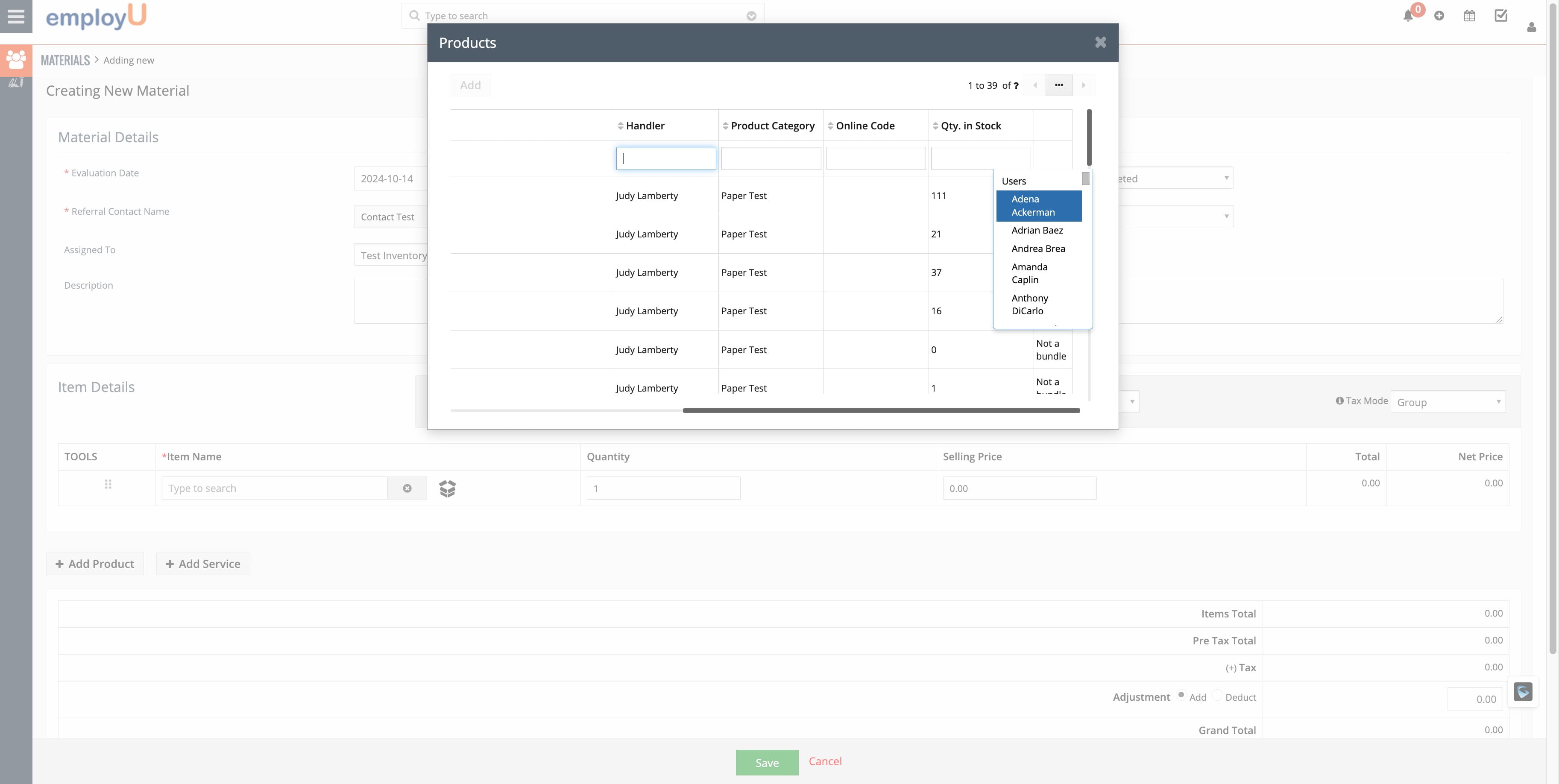
Also, search for your name in the 'Handler' field.
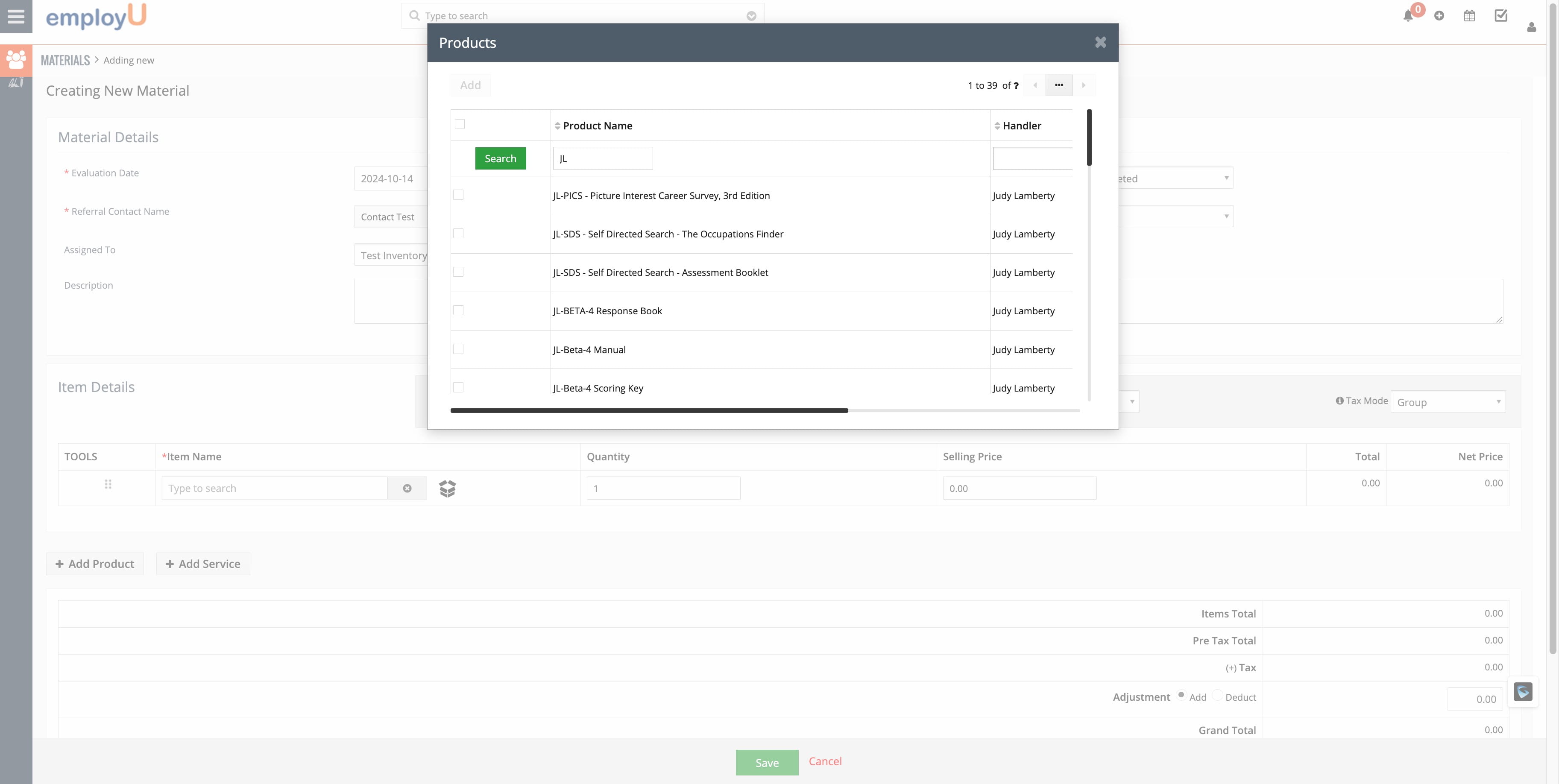
Also, search for your name in the 'Handler' field.
16

Select your name.

Select your name.
17

Find the correct test. In this example, it's the 'JL-WRAT-4 Blue Response Form'.
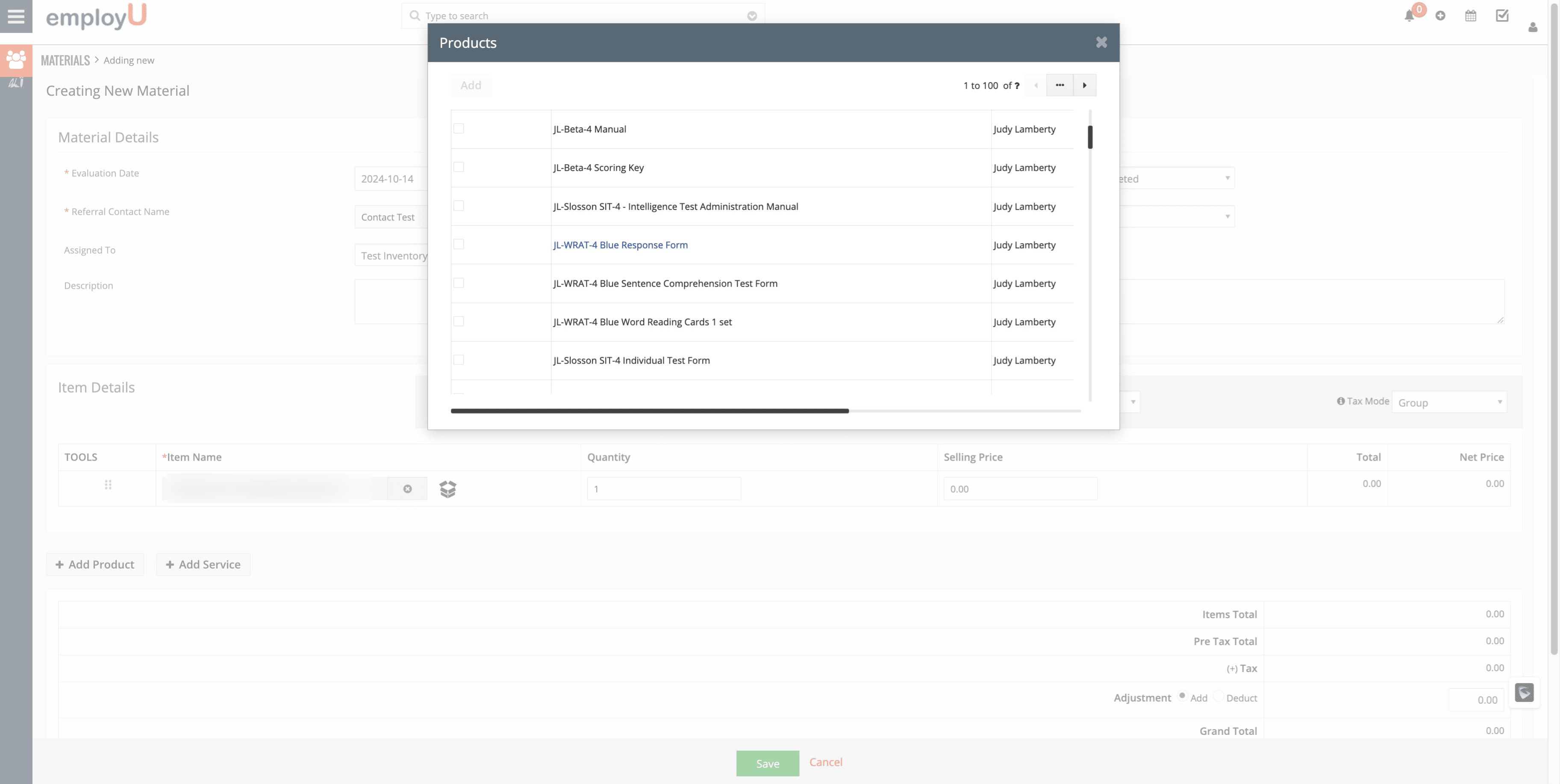
Find the correct test. In this example, it's the 'JL-WRAT-4 Blue Response Form'.
18

Let's add another test. Click 'Add Product'.
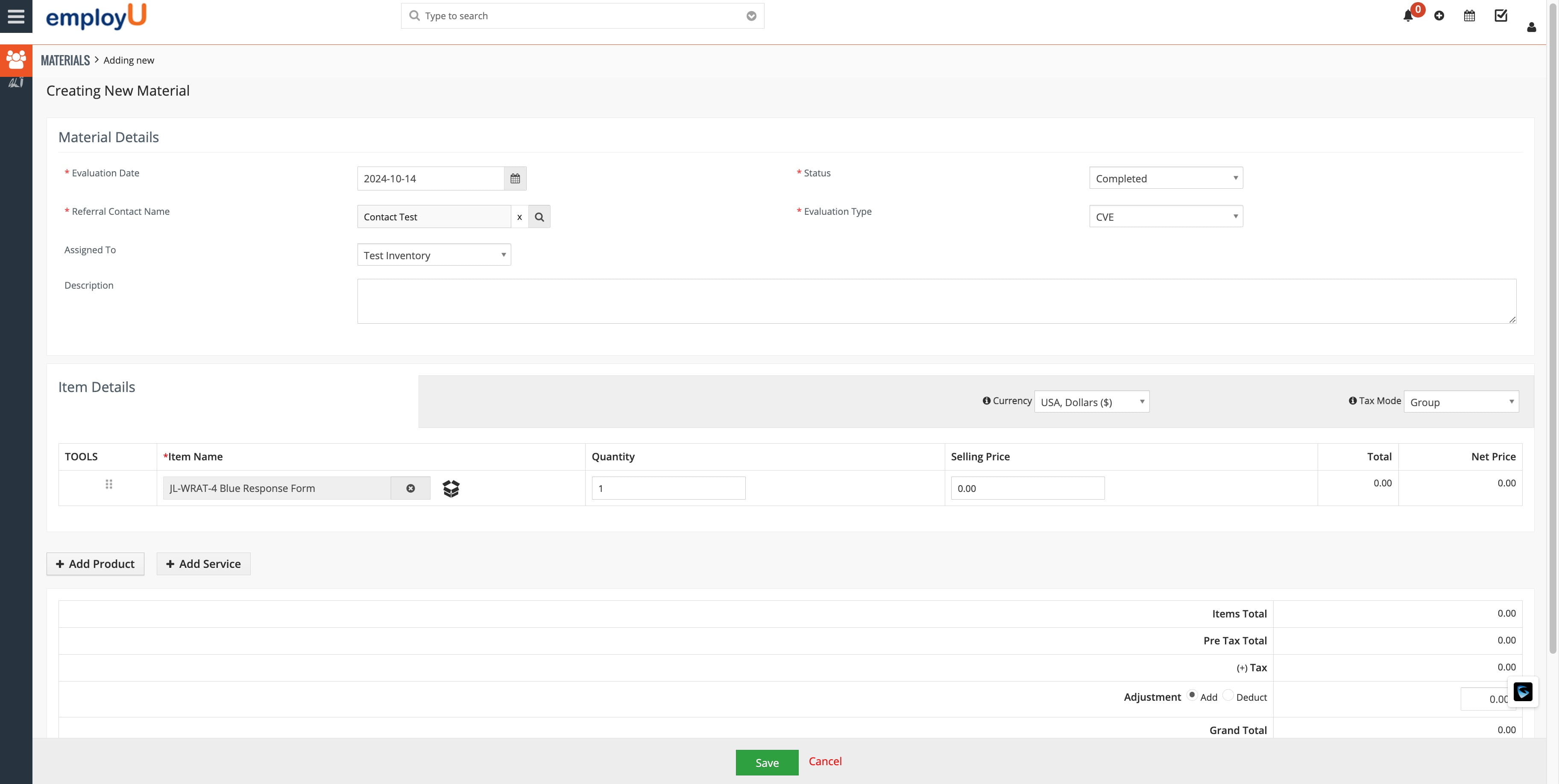
Let's add another test. Click 'Add Product'.
19

Click the icon to search for the test.
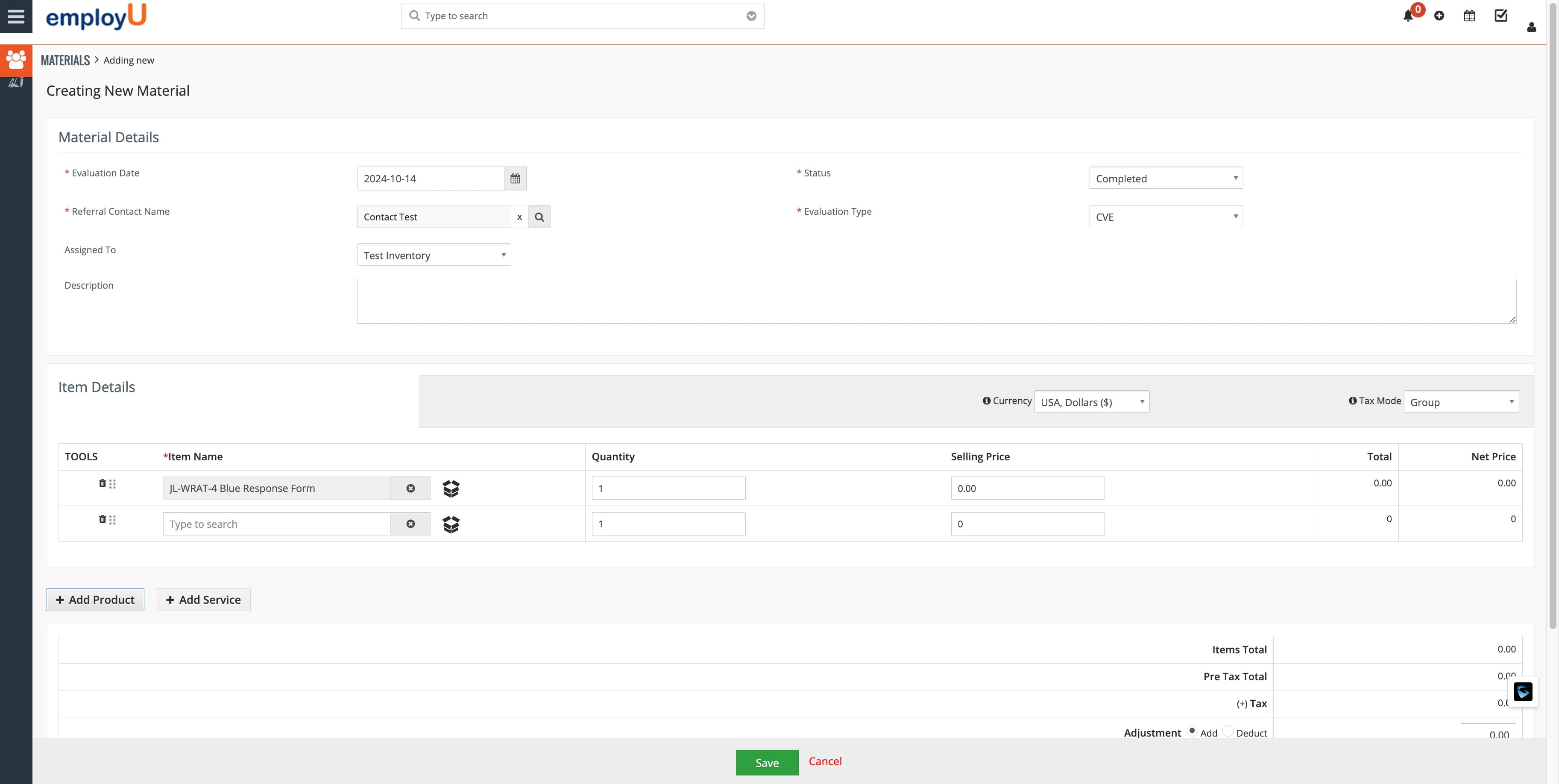
Click the icon to search for the test.
20

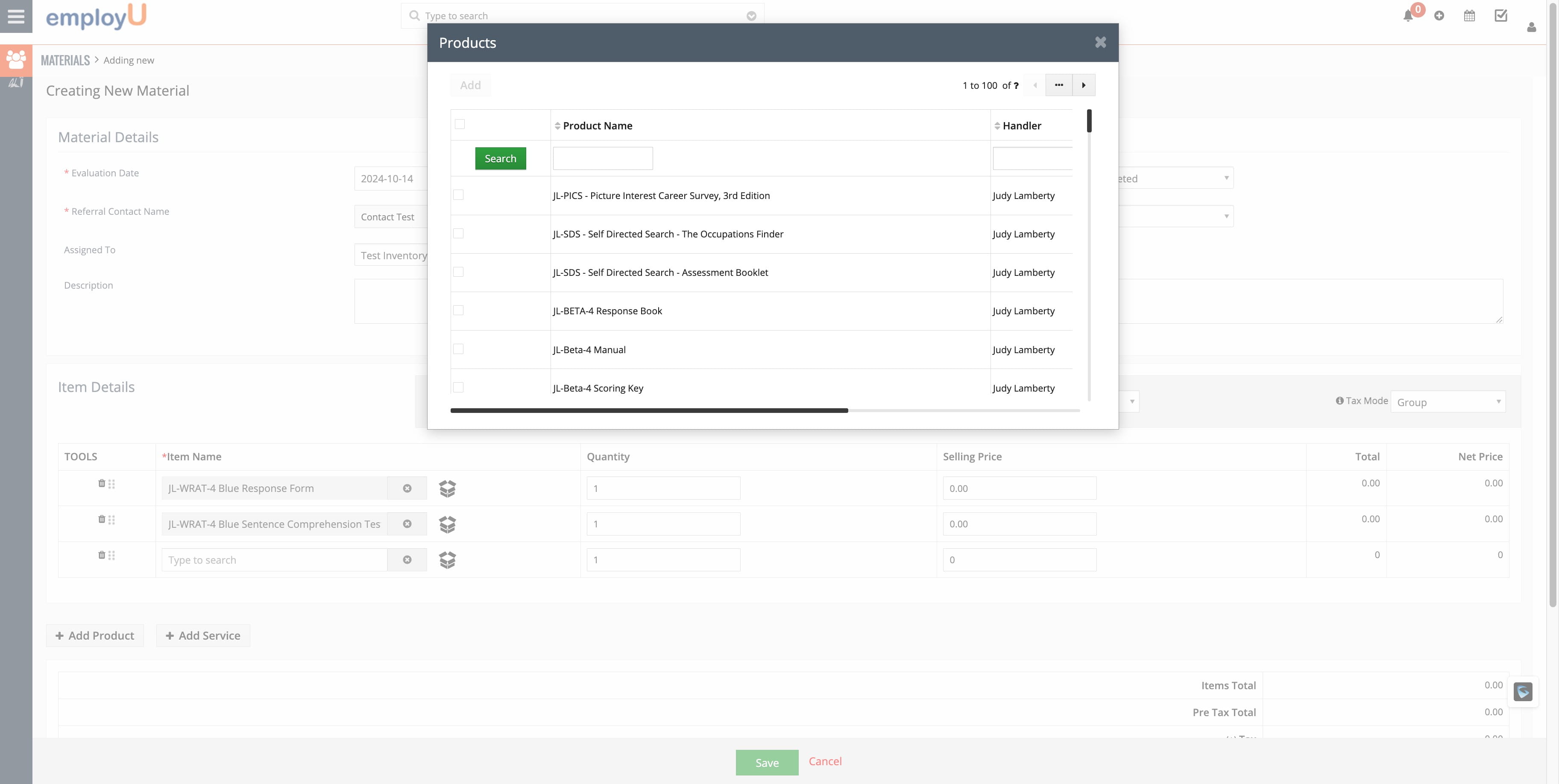
Following the previous instructions, search for a new test. This time, it's the 'JL-WRAT-4 Blue Sentence Comprehension Test Form'.
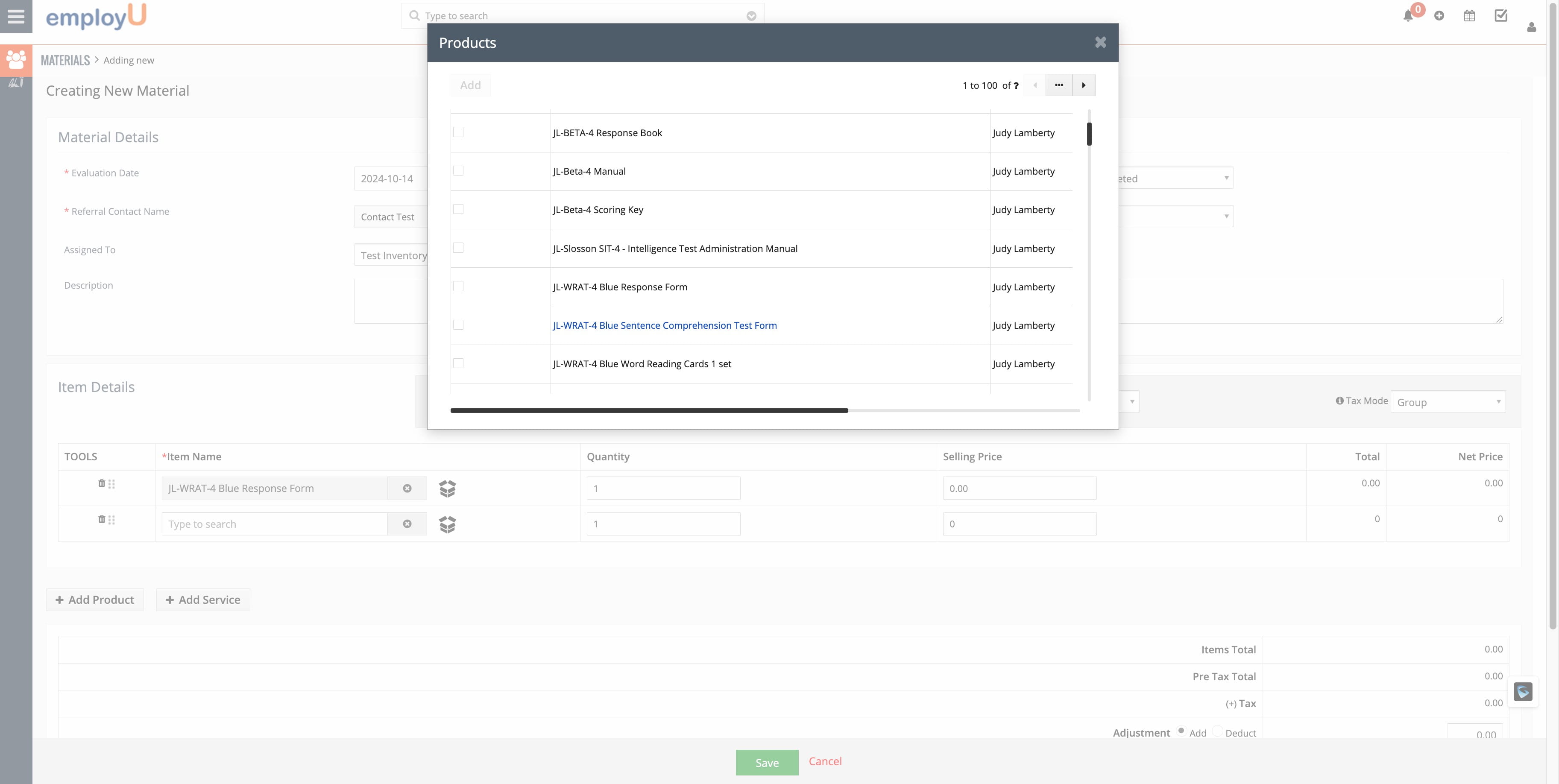
Following the previous instructions, search for a new test. This time, it's the 'JL-WRAT-4 Blue Sentence Comprehension Test Form'.
21

Let's add another test; this time, we'll search for an SDS Online code.
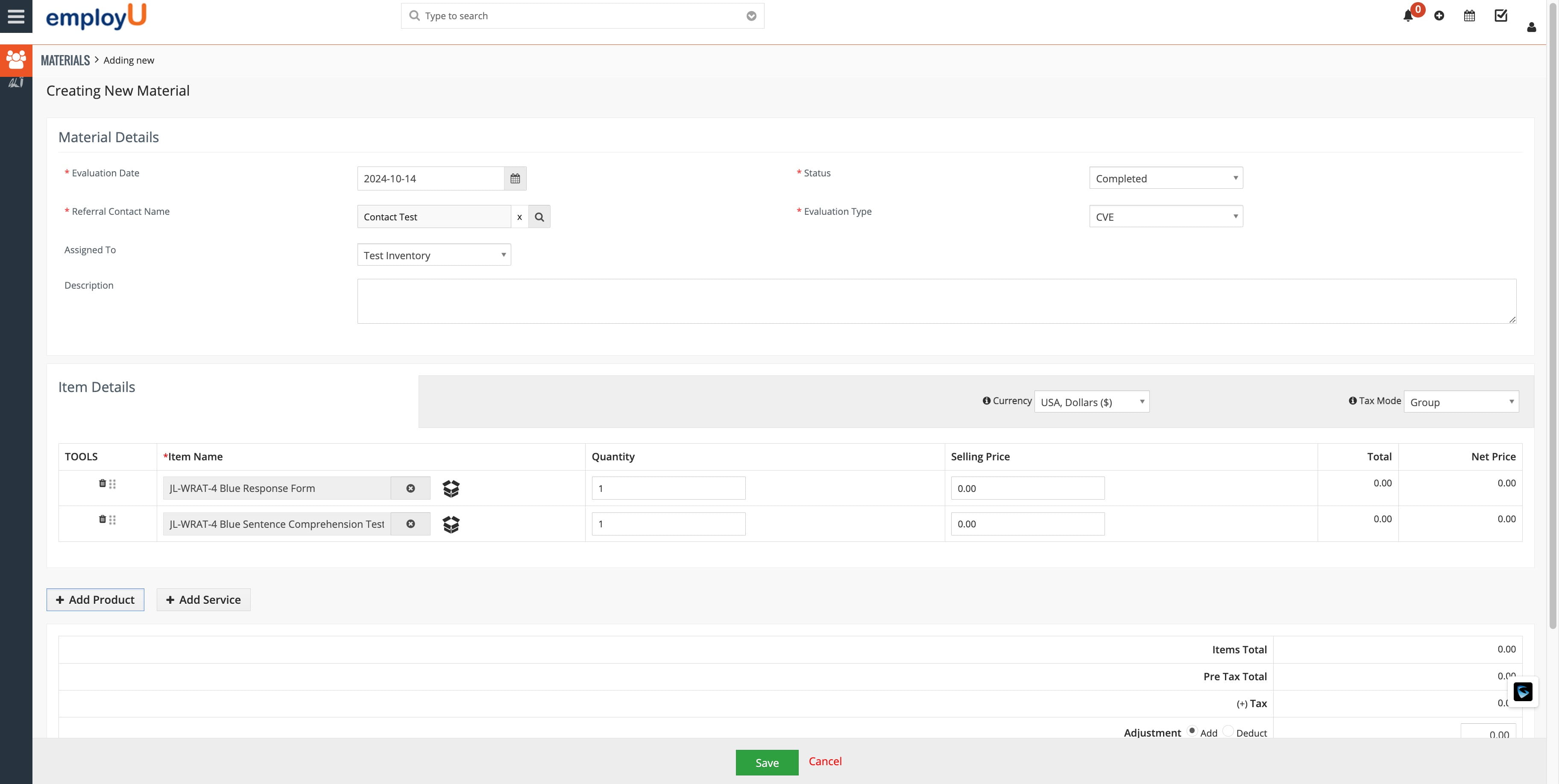
Let's add another test; this time, we'll search for an SDS Online code.
22

Click the icon to search for the test.
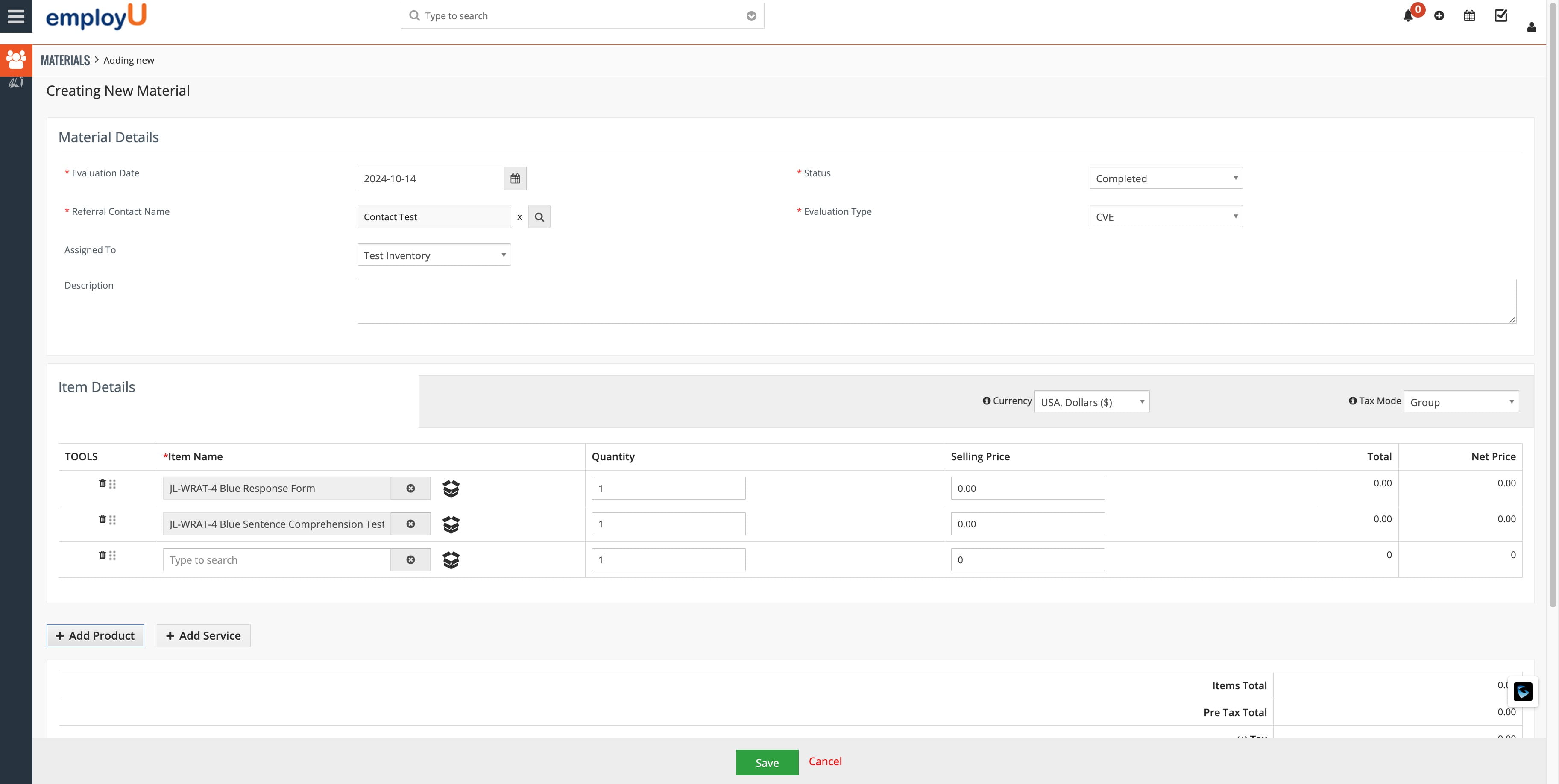
Click the icon to search for the test.
23

In the Product Category, search for 'Online Test'.
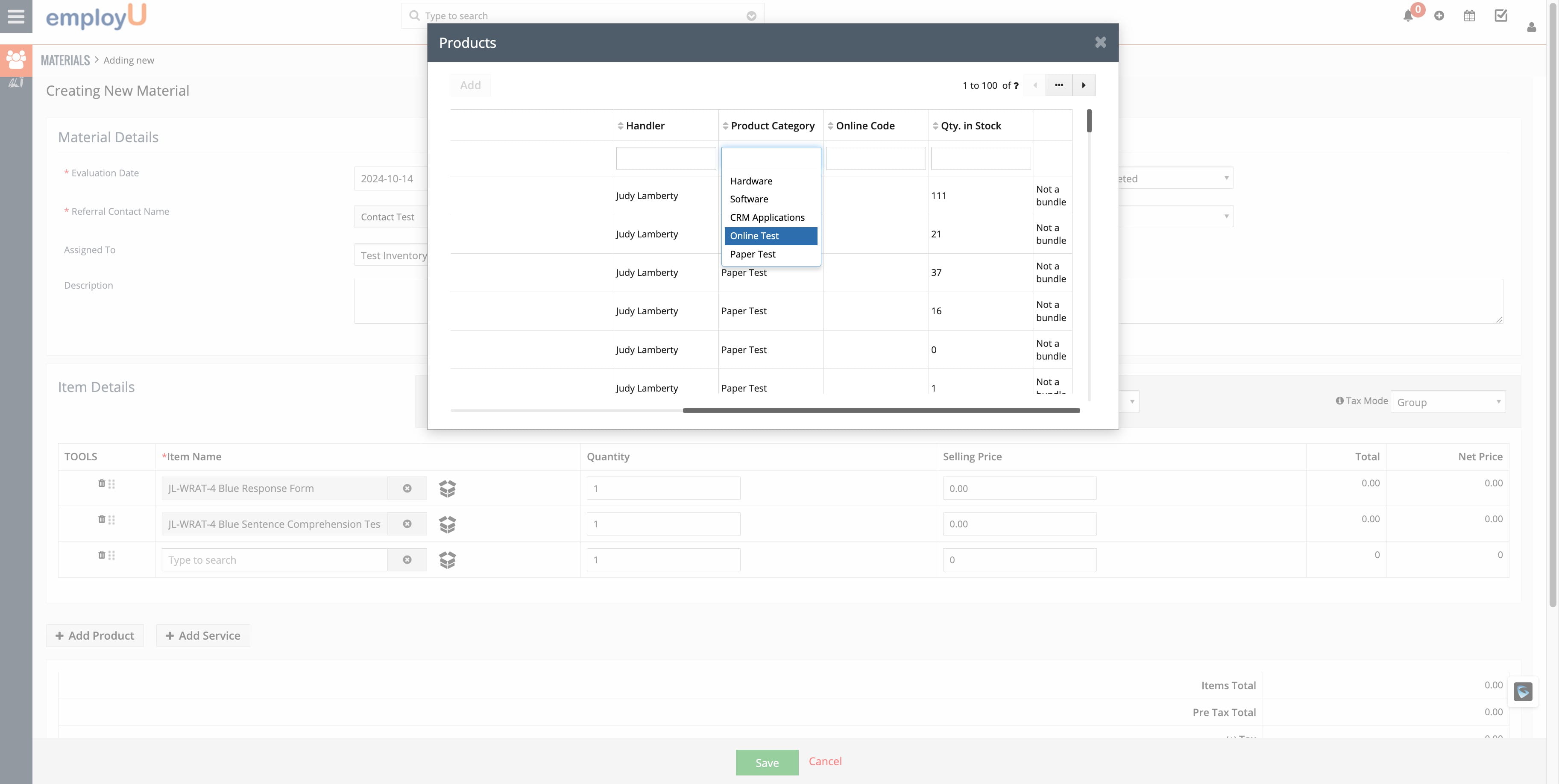
In the Product Category, search for 'Online Test'.
24

Click 'Search'.

Click 'Search'.
25

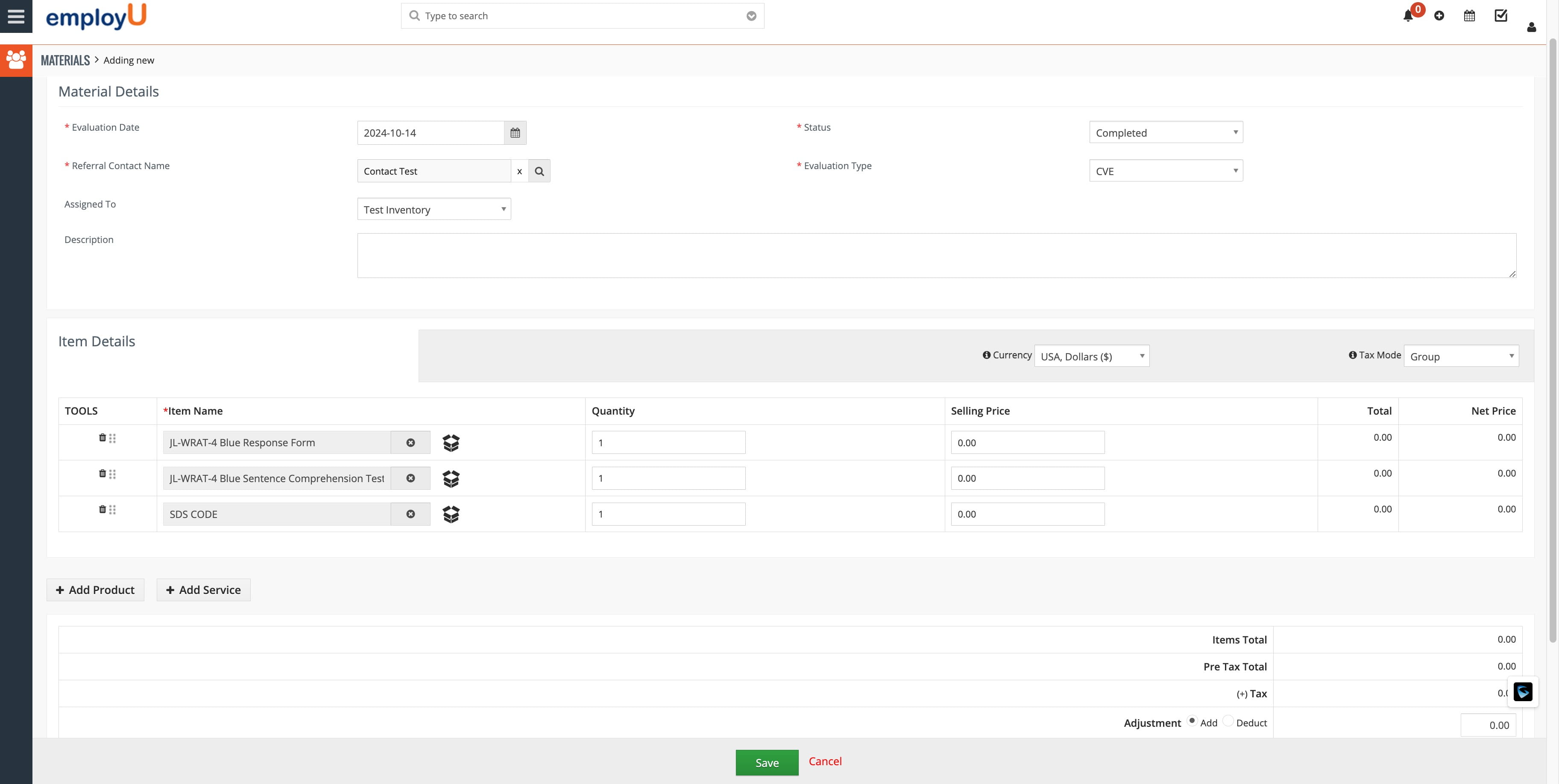
Select the code that was used for a test for this client.
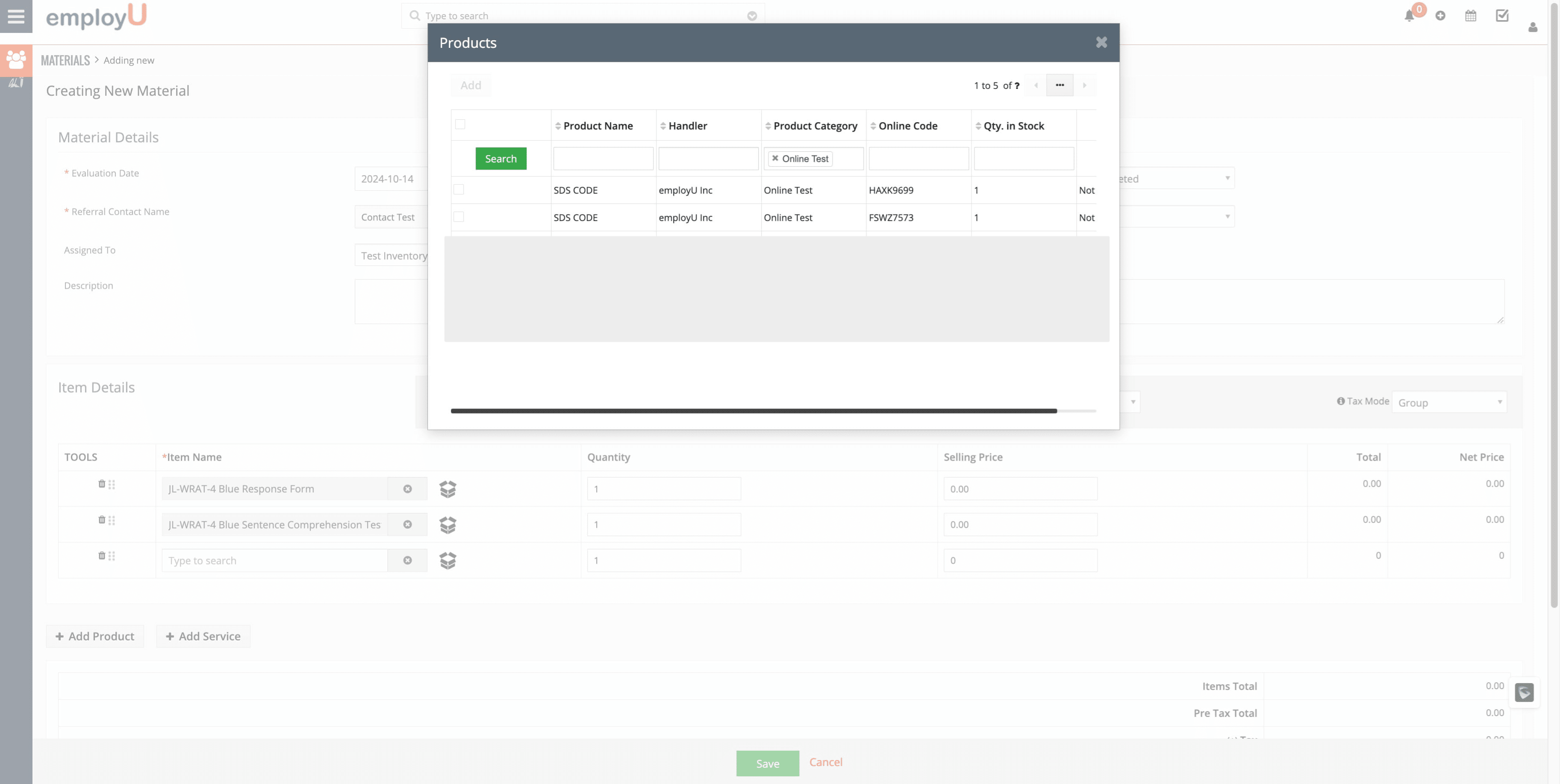
Select the code that was used for a test for this client.
26

Click 'Save'.

Click 'Save'.
27

Done 🚀

Done 🚀